
Calendar view in Day One
Using the Calendar view in Day One for iOS and macOS
The Calendar view in Day One indicates the days on which you have entries created and allow you to create new entries, view day summary, or view On This Day entries.
Using the Calendar View on iOS and Android
Tap the word Calendar icon at the top center left to access this view.
The days that have entries will be colored according to your selected journal. If your entry for the day is in a Journal that is yellow, then the day will be colored yellow. Any days that do not have entries will be white or black, depending on your device appearance settings. Tap the Calendar tab at the top a second time to scroll back to the current date.
Photos from entries can now be enabled to show in the date cells. To enable/disable, go to Settings > Appearance > Show Photos in Calendar.
Tap any date to open the Today View.
The Today view shows entries created on that date. These can be hidden or shown by tapping the arrow next to “Entries”. This also shows sources for new entries including Photos, Places, Events. Tap these to create new entries using that content.
Long press on any date to get a contextual menu.
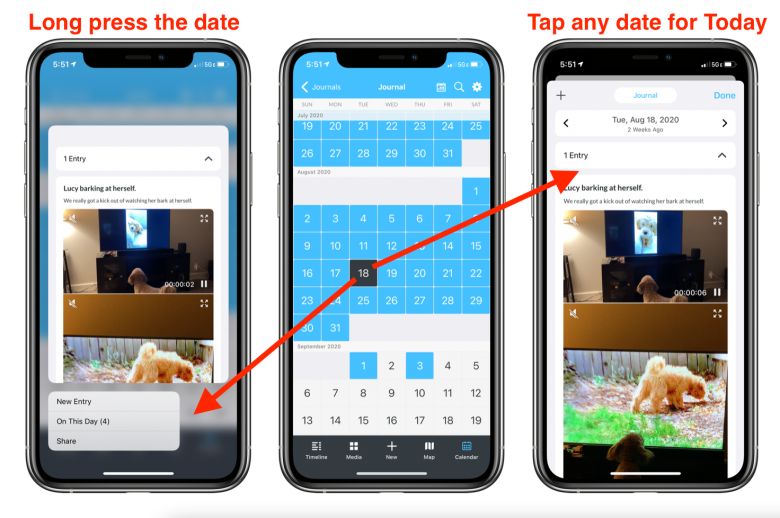
To start a new entry, use one of the sources in the Today view or tap the + icon at the top left of Today. You can swipe between dates at the top or simply swipe from left to right.
Searching for a specific date:
On iOS: To go back in time to a specific date, tap the Magnifying Glass, then select the Date option to access the date selector for the Calendar view.
On Android: There is no search-by-date option. To find an older entry, scroll to that date in the Calendar view, or tap the Magnifying Glass to filter by keyword, tag, place, or favorite instead.
Adjust Day One Calendar Permissions on iOS
You can manage Day One’s access to your calendar events through your iPhone’s system settings:
- Open your iPhone’s Settings app.
- Scroll down and tap on Privacy & Security.
- In the Privacy & Security menu, tap on Calendars.
- You’ll see a list of apps that have requested access to your calendars. Find Day One in this list.
- Tap None.
Using the Calendar View on macOS
On macOS, click the option for Calendar at the top of the app. Click any date to see the entries for that date, plus data from the Today view. Right-click (control+click) on any date to Create New Entry on that date.


Adjust Day One Calendar Permissions on macOS
Day One can display calendar events alongside your journal entries. To manage this access on macOS:
- Open System Settings on your Mac.
- Click Privacy & Security in the sidebar.
- Click Calendars.
- Find Day One in the list of apps.
- Toggle Day One off to revoke calendar access, or toggle it on to allow access.
Day One does not have an in-app setting to manage calendar permissions. Calendar access is controlled entirely through macOS System Settings.

Using the Calendar View on Web App
On the web app, click the option for Calendar at the top of the app. Click any date to see the entries for that date, plus data from the Today view. Click on the + icon in the top right to add a new entry to that date.
FAQ
How can I adjust my calendar start day?
Currently, the day on which a week begins in the calendar view isn’t customizable from within the app’s settings.
For the iOS, Mac, and Android apps, the calendar start day will align with your device’s locale settings. On these apps, you can set your device language to one that designates Monday as the start of the week, such as English UK, to achieve the desired start day.
For the web app, there is no way to adjust the start day. It will always be Sunday.
How can I adjust the image for a day?
If your entry has several images in it, you can choose which one shows on the calendar on Mac by right-clicking an image and clicking Favorite. The same can be done on iOS by long-pressing on an image in an entry to then tap Favorite. Android will use the first image added to an entry, and does not have the Favorite feature that can be used to adjust the image for a day in the Calendar view.
Where can I find my daily location summary?
Daily location summary is available on iOS only.
You can find it in the following place when in Calendar View:
– Tap on a Date
– Look for “Places” section
– Tap on the Map, or the “Places” label itself, or on “>” next to a location
– You should then see a “Day Summary (All)” option
