
Duplicate Premium Subscription Troubleshooting
How to restore Day One Premium
Only one subscription is needed for Premium on all platforms. If you have purchased Day One Premium (or Plus) and it is not showing up on all your devices, we have some steps that may help.
Step 1
Check that your User ID is the same on all your devices. If your devices are signed in with different User IDs, they are using different Day One accounts – and each account may have its own separate subscription. This is one of the most common causes of being charged multiple times (duplicate charges) for Day One Premium. To check your User ID, go to Day One > Settings and look for “User ID” or “Account.”
Step 2
Check where you made your Day One purchase (iOS or Mac) in the App Store: On iOS open the App Store, tap your profile picture (top right), then tap Purchase History. On Mac, open the App Store, click your profile picture (bottom left) then click Account Settings > Purchase History.
The Restore Purchases button must be done on the device where you originally subscribed. That will send the receipt info to the server and then to the other devices. The icon for iOS and Mac is slightly different. The Mac icon has a slight shadow under the white bookmark whereas the iOS icon is completely flat with no shadow. See screenshot:

Step 3
Restore your purchase: please follow these steps on the device where you purchased the Premium subscription (or Plus):
iOS
Day One > Settings > Advanced > Select “Restore Purchase”
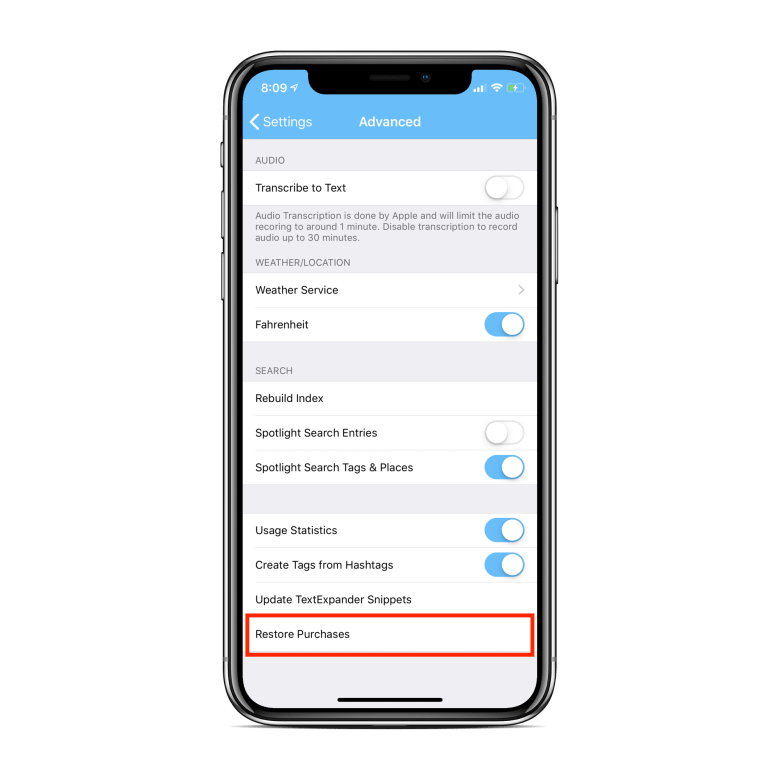
Android
Day One > Settings > Account Status – Scroll down below the reviews, and Select “Restore Purchase”

Mac
Go to Day One > Settings > Support > Restore Purchases

Or on the upgrade screen there is a button for Restore Purchase below the reviews:

Duplicate Subscription
The Mac App Store and iOS App Store are handled separately by Apple, so it is possible in some cases to subscribe on both platforms. Only one subscription is needed for each Day One account. Before canceling, first check that your User ID is the same on all your devices (see Step 1 above) – different User IDs mean different accounts, each with its own subscription.
If you notice you have two Day One Premium subscriptions on the App Store or if you were double-charged by Apple for Day One, please cancel one of these as soon as possible. We personally recommend canceling the duplicate subscription and requesting a refund from Apple for the platform you are less likely to upgrade in the future. For example, if you are more likely to get a new iPhone than a new Mac, cancel the subscription on the Mac. They are differentiated by the icon in the App Store.

If you were charged for two Day One Premium subscriptions on Apple, it is possible to request a refund from them for one of these. Please go to https://reportaproblem.apple.com/ to initiate that process.
For future reference, your data will not be deleted if you cancel the subscription. You always keep your data regardless of the subscription status. For more details, please check out this article.
